How to Integrate EZShift with HiBob
Connect HiBob to EZShift, configure employee sync rules, map scheduling boards and automatically import employees for smarter workforce scheduling.
Step 1
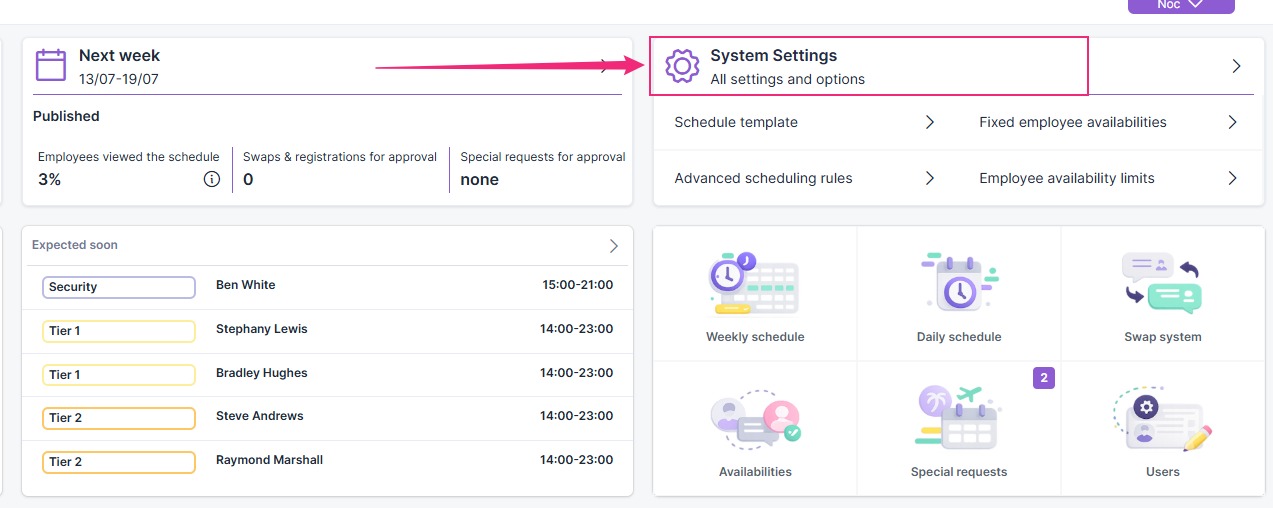
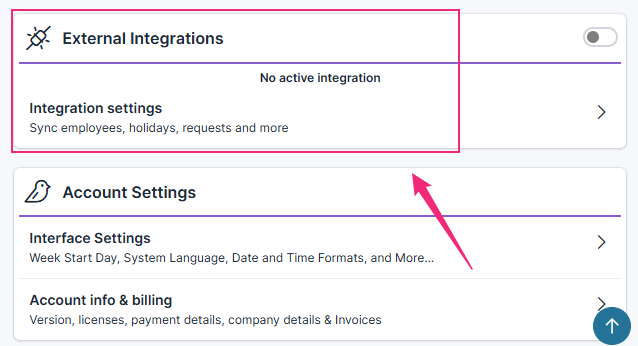
Open the Integrations screen in EZShift: Settings > Integrations.
Step 2
Select the integration type: HiBob.

Step 3
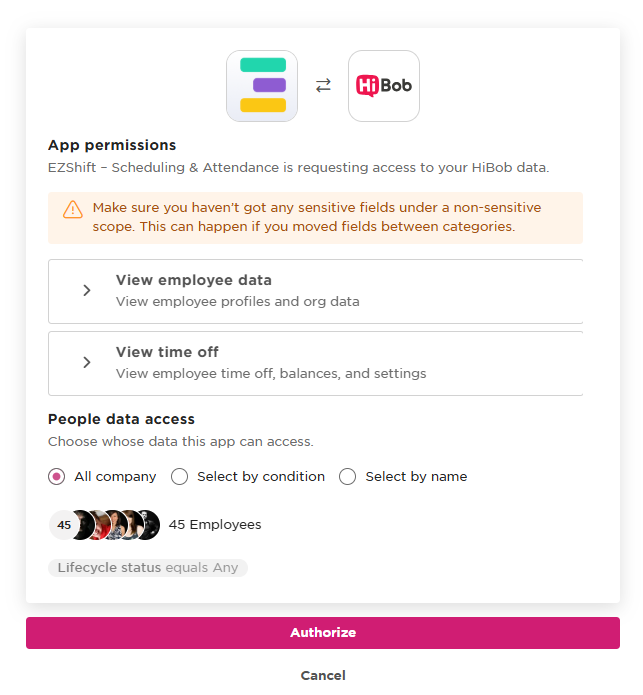
Connect your HiBob account and approve the requested permissions.

You can configure the synchronization rules either during the HiBob connection process or later from the EZShift integration settings.

Step 4
Sign in to your EZShift account.

Step 5
Select the relevant scheduling board (if your organization uses multiple scheduling boards in EZShift).

Step 6
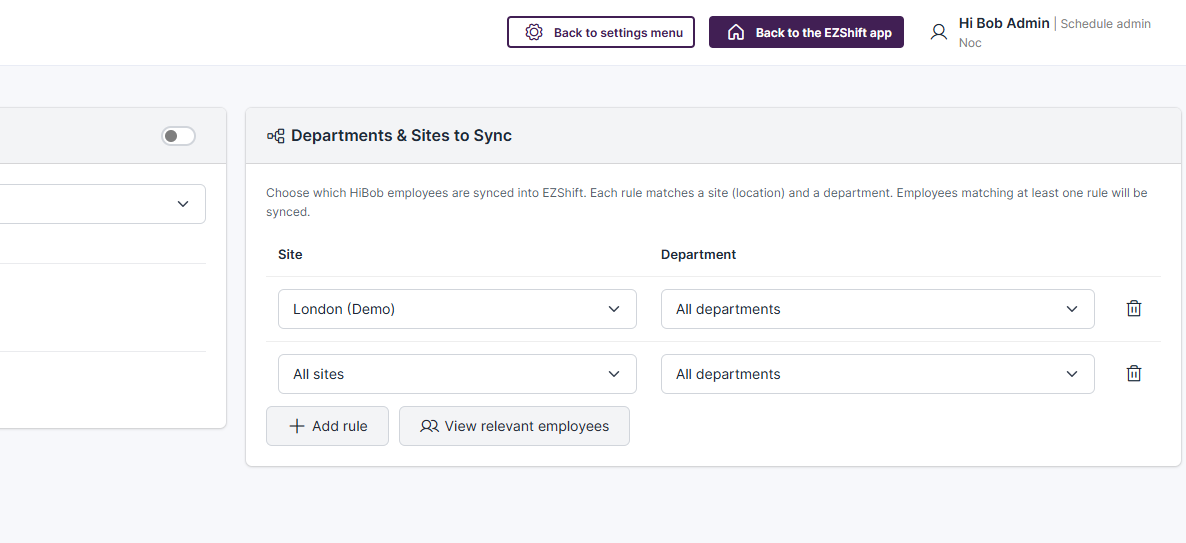
Configure the synchronization rules. You can sync employees based on Site and Department, and create multiple synchronization rule combinations.
Step 7
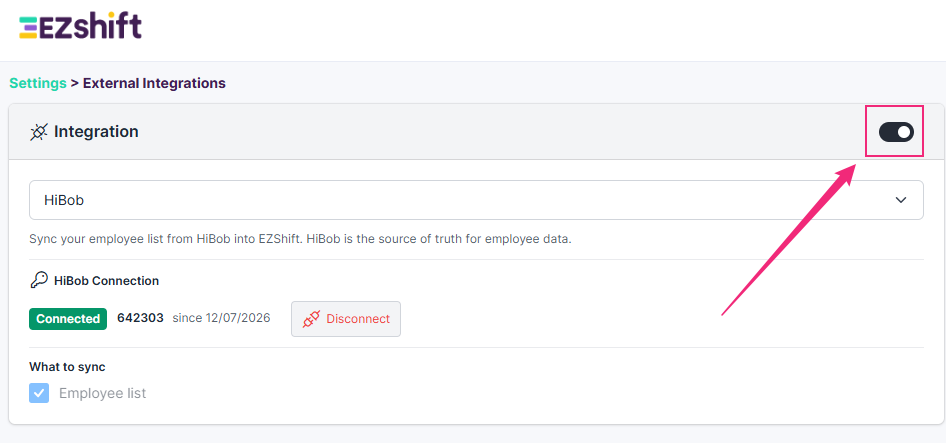
Enable synchronization for the selected board in EZShift.
Step 8
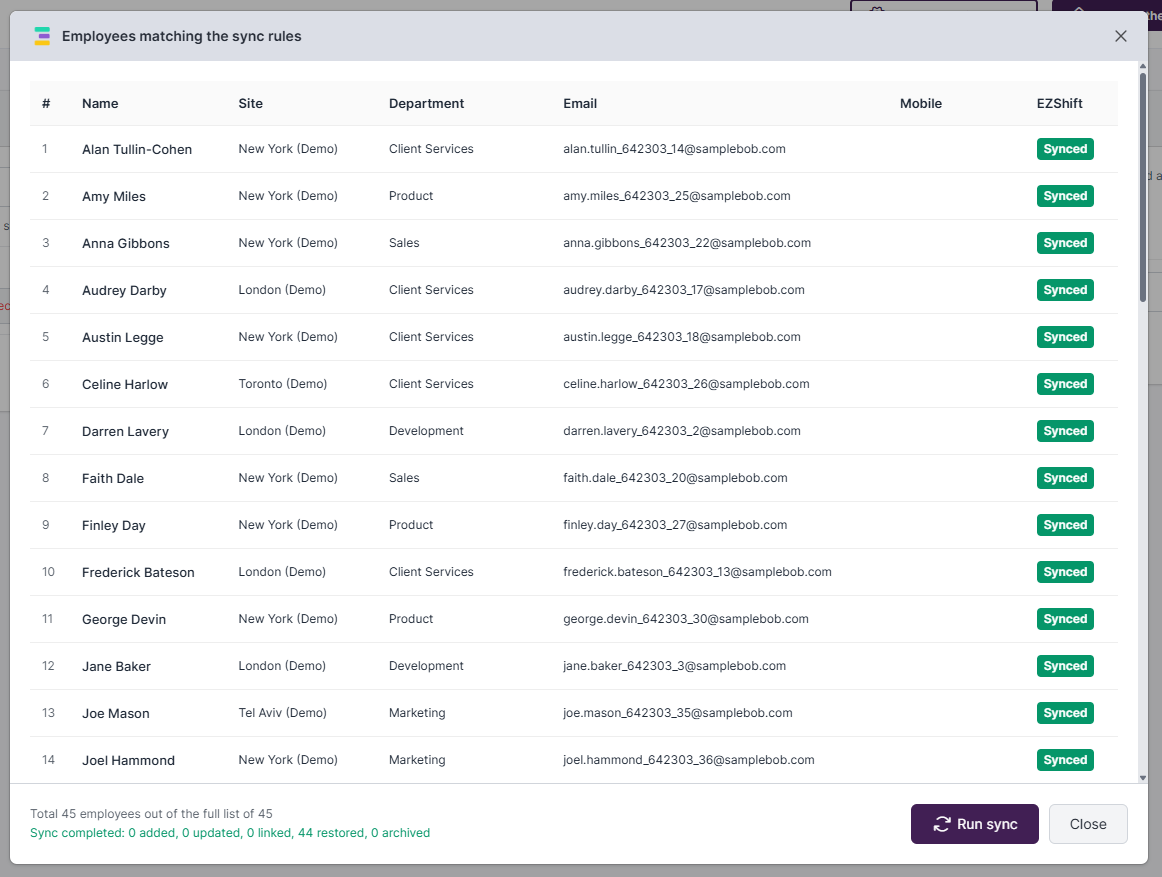
In the synchronization settings, you can view the list of matching employees and start the synchronization directly from this screen.
Step 9
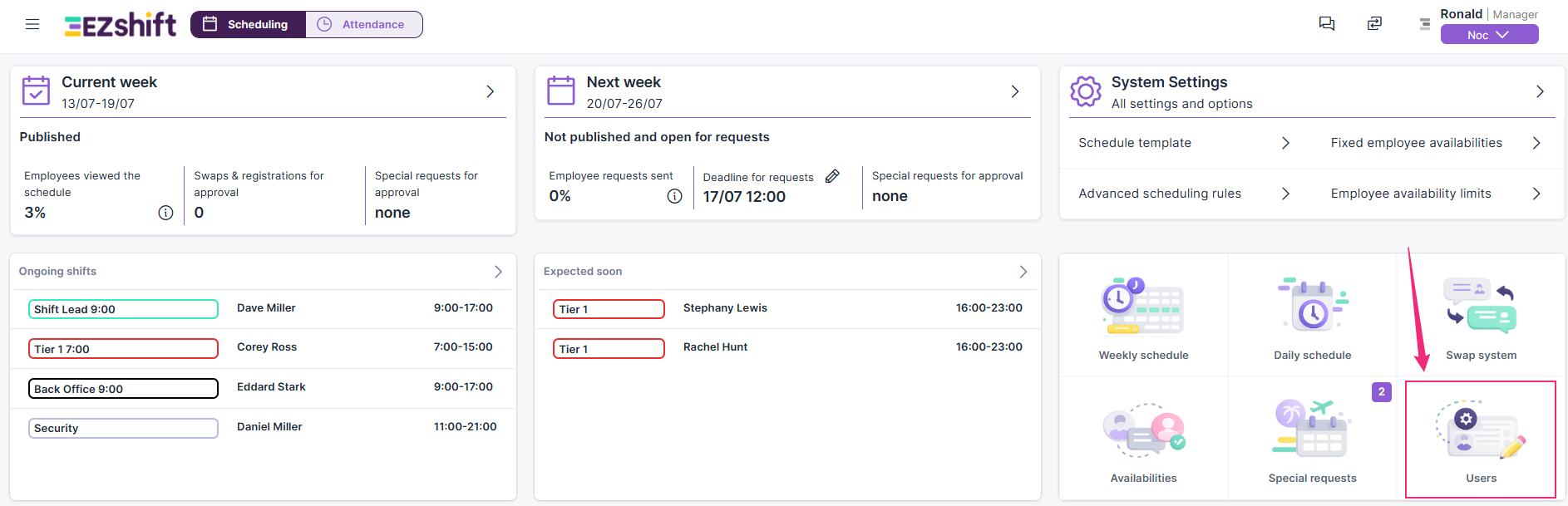
The employee list will be synchronized to EZShift. In the Users screen, you can assign the settings required for workforce scheduling.
Step 10
You can also synchronize the employee list directly from the Users screen.

Prefer to see the process in action?
Watch the video below for a complete step-by-step walkthrough.