By clicking “Accept All Cookies”, you agree to the storing of cookies on your device to enhance site navigation, analyze site usage, and assist in our marketing efforts. View our Privacy Policy for more information.
Fixed employee availabilities allow the schedule manager to save employees the need to manually submit their availability each week. Instead, the manager can define permanent availability rules for specific employees. For example:
“Cannot work Sunday mornings”
“Never available for night shifts”
This is especially useful for employees who have consistent scheduling limitations that don’t change over time.
How to Set Fixed Availabilities
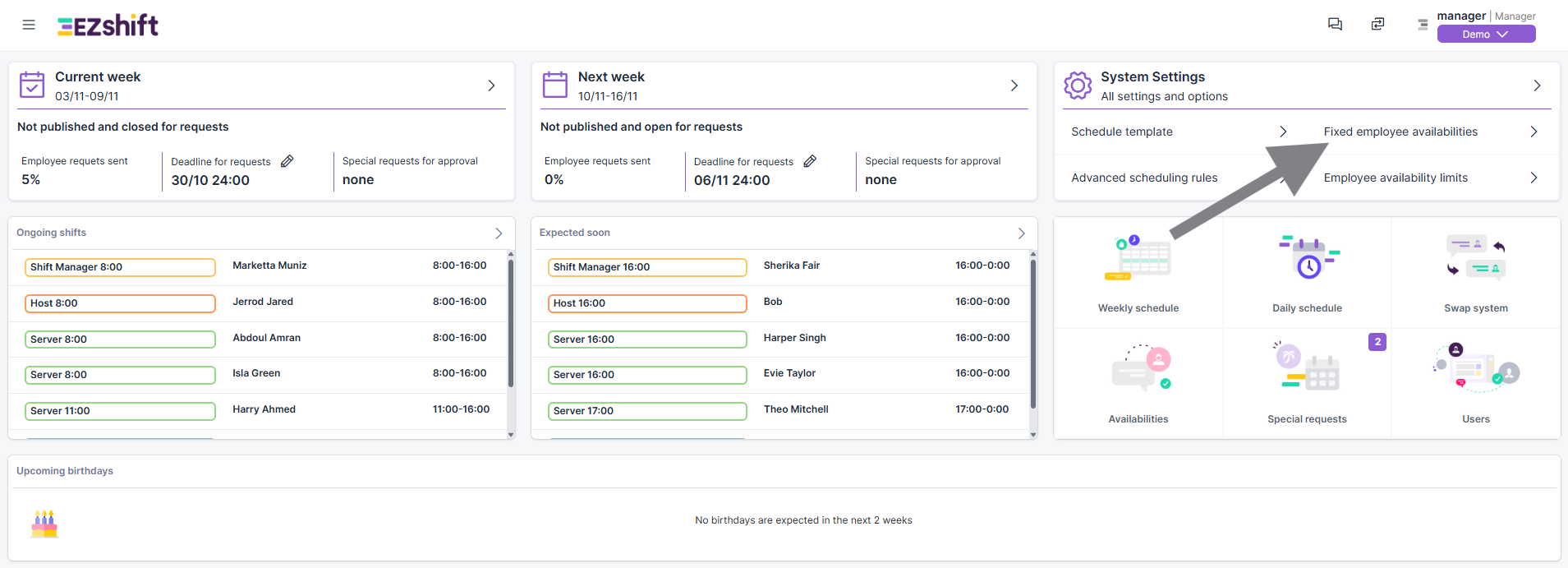
1. From the main dashboard, click Fixed Employee Availabilities (top right).
2. Select the employee for whom you want to define fixed constraints.
3. In the screen that opens, mark the shifts or days when the employee is unavailable, according to your organization’s defined shift types.
4. Don’t forget to save your changes when finished.
Note: Fixed availabilities cannot be edited or deleted by the employee, they are fully controlled by the schedule manager.
Pro Tip
In most cases, we recommend letting employees manage their own availability through the standard Availability Requests feature - it keeps them more engaged and responsible for their schedule. However, the Fixed Availability option can be very useful in certain situations - for example, for part-time employees with permanent constraints or students with recurring class schedules.